
OpenClaw setup
On-Site OpenClaw Installation in Norcross
You can describe your computer setup over a call, but sometimes you'd rather point to the desk and say, “This is where I need help.” On-site OpenClaw installation in Norcross brings William into that conversation, with time to set up the assistant and practice using it where you work.

In this guide
- Your working day has more moving pieces than a demo
- Plan the visit around one small piece of work
- William works beside you at the computer
- Make sure the person with permission is available
- How an office installation unfolds
- The first message can stay with you for review
- Finish with an exercise you can repeat tomorrow
- Getting to your Norcross office
- Questions about an on-site appointment
- Arrange the visit around your work
Your working day has more moving pieces than a demo
The computer may be shared, the files may live in several places, and the person who approves software may be busy elsewhere. Those details can make a promising assistant feel difficult to get started with.
Before arranging the installation, talk through how that desk is used. A few ordinary questions about access and availability can make the appointment much more useful.
Plan the visit around one small piece of work
Choose something you can pause and examine together. Turning your own rough notes into an internal handover draft is one place to begin: you already know what the finished message needs to say.
Our Norcross setup service includes installation, customization, and teaching. You can use the appointment to learn how your assistant responds before connecting it to more of your day.
William works beside you at the computer
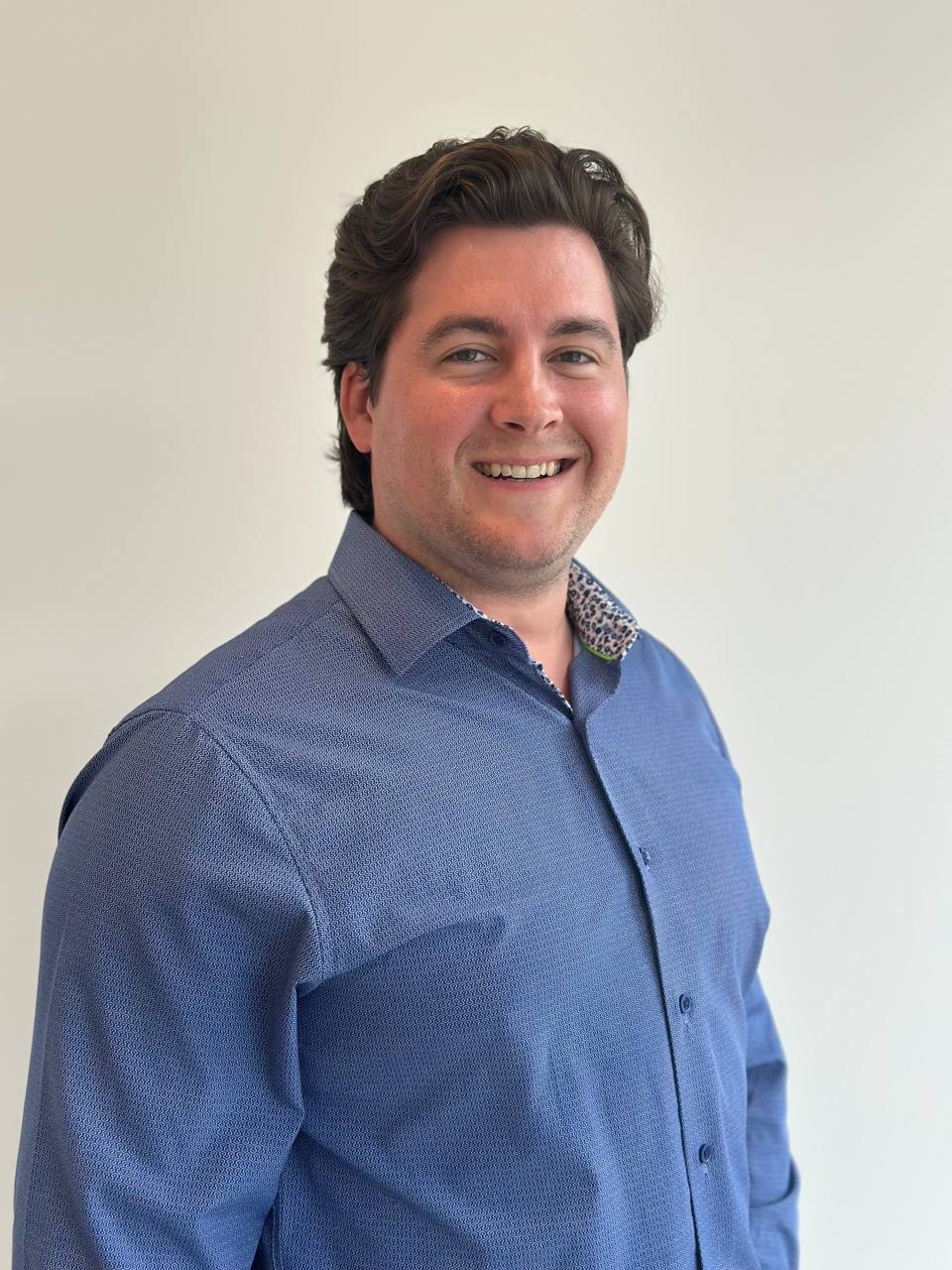
William comes to your Norcross office for setup, and remote sessions are another available option. He prepares and updates the hardware, installs OpenClaw, connects the agreed AI access and tools, and helps you work through your first exercise.
The conversation stays close to what you're doing. You can point out a missing detail, ask him to explain a setting, or repeat a step until it makes sense. William has built dedicated assistants for more than a dozen people, and questions during the month after installation go directly to him.
Make sure the person with permission is available
A computer you use every day may still be managed by someone else. Ask who can approve installations and account connections before the visit.
If your team has an IT contact, share the intended task and proposed access with them first. Keep the right person reachable during setup so an approval question has a clear owner.
How an office installation unfolds
- Look at the working setup. Show William which machine you intend to use, when other people need it, and what job you'd like help with.
- Agree on the first boundaries. Choose the practice information and the connections required. Decide where you want the assistant to stop and ask before taking action.
- Prepare the software. William handles the installation and configuration, explaining the choices that affect your use. Keep account sign-ins under the control of their authorized owner.
- Open the conversation. The OpenClaw setup guide describes using its browser chat after installation. We show you how to reach that conversation on your machine.
- Run your handover exercise. Give it a short set of approved notes and ask for a draft. Check that the response preserves the responsibilities and next steps you supplied.
- Repeat the work together. Change one detail in the notes and try again. Ask questions about anything that feels unclear before moving on.
Setup takes a few hours, with the precise appointment shaped by your equipment and needs. Leave space in your day for the teaching as well as the installation.
The first message can stay with you for review
Keep the first handover exercise focused on a draft you can inspect. Read the response in chat and move an approved version into your usual work yourself.
When you want the assistant to take another step, discuss that permission separately. Review the recipient, the content, and the action before expanding what it can do.
Finish with an exercise you can repeat tomorrow
A useful handover leaves you able to find the assistant, give it your notes, and review its answer. You know which details need checking and how to ask for a correction.
Our OpenClaw installation and care overview explains the support options after that first session. If you'd like extra time learning the conversation itself, see how a first AI class works. If several business tasks are competing for attention, a consulting conversation can help you choose the starting point.
Getting to your Norcross office
Tell us whether your workplace is in historic downtown, the Gateway85 business district, or the Oakbrook Parkway office area. An address and entrance description help place the appointment, especially where a Norcross mailing address covers a wider area than the city itself.
For downtown appointments, Thrasher Park and Lillian Webb Park are useful landmarks for describing the surrounding blocks. Jimmy Carter Boulevard helps locate businesses on the Gateway85 side, while Oakbrook Parkway gives office teams a more specific point of reference for arrival.
We serve nearby Peachtree Corners, Duluth, Lilburn, and Doraville too, so include your location when describing the work you want help with.
Questions about an on-site appointment
Can we use a computer that several people share?
Discuss that before arranging the visit. We need to understand who uses the machine, which accounts belong to whom, and how the assistant will fit into that arrangement.
Do I need to stop working for the whole session?
Plan to be available for decisions, sign-ins, and practice. Tell William about any work you must keep doing so you can agree on a suitable appointment window.
What should our IT contact know in advance?
Explain the proposed task, the machine involved, and the accounts under consideration. Ask which installation and access approvals they require.
Can the first exercise use internal handover notes?
Choose notes you are authorized to use and remove sensitive details. Keep a copy beside you so you can check the draft against the information you provided.
Will I know how to ask for changes afterward?
Practice includes requesting revisions and discussing what makes an answer useful. You can contact William with follow-up questions during the next month.
Is ongoing maintenance available?
You can discuss optional monthly care for continued technical support. William also offers guidance on using a coding assistant to help you handle repairs.
Arrange the visit around your work
Book a free 30-minute call with William to discuss on-site OpenClaw installation in Norcross. Tell us about your computer, who uses it, and the first task you'd like to practice.